
Use Claude Code with your platform’s Anthropic-compatible proxy.
Install Claude Code
- Native Install (Recommended)
- Homebrew
- WinGet
macOS, Linux, WSL:Windows PowerShell:Windows CMD:
Configure your platform API
Important: Before configuring, clear the following Anthropic-related environment variables so old values do not override your platform settings:
ANTHROPIC_BASE_URLANTHROPIC_AUTH_TOKEN
Choose an integration method
- @apigo/vibe-coding
- Manual configuration (Current)
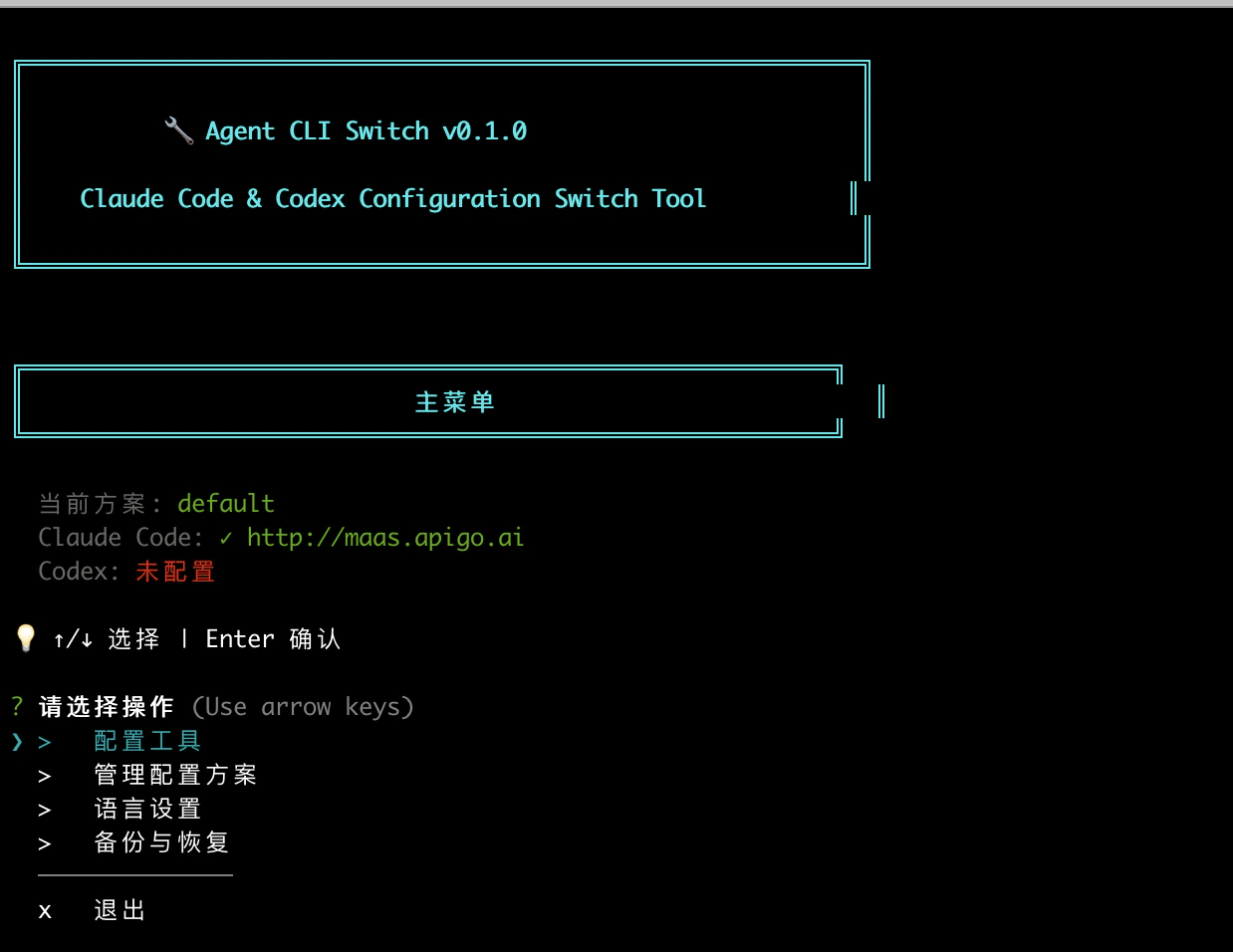
@apigo/vibe-coding corresponds to the interactive terminal tool Agent CLI Switch. This flow writes Claude Code settings for you directly.Follow the flow shown in the screenshots:- Open Agent CLI Switch v0.1.0.
- In the Main menu, choose Configure tools.
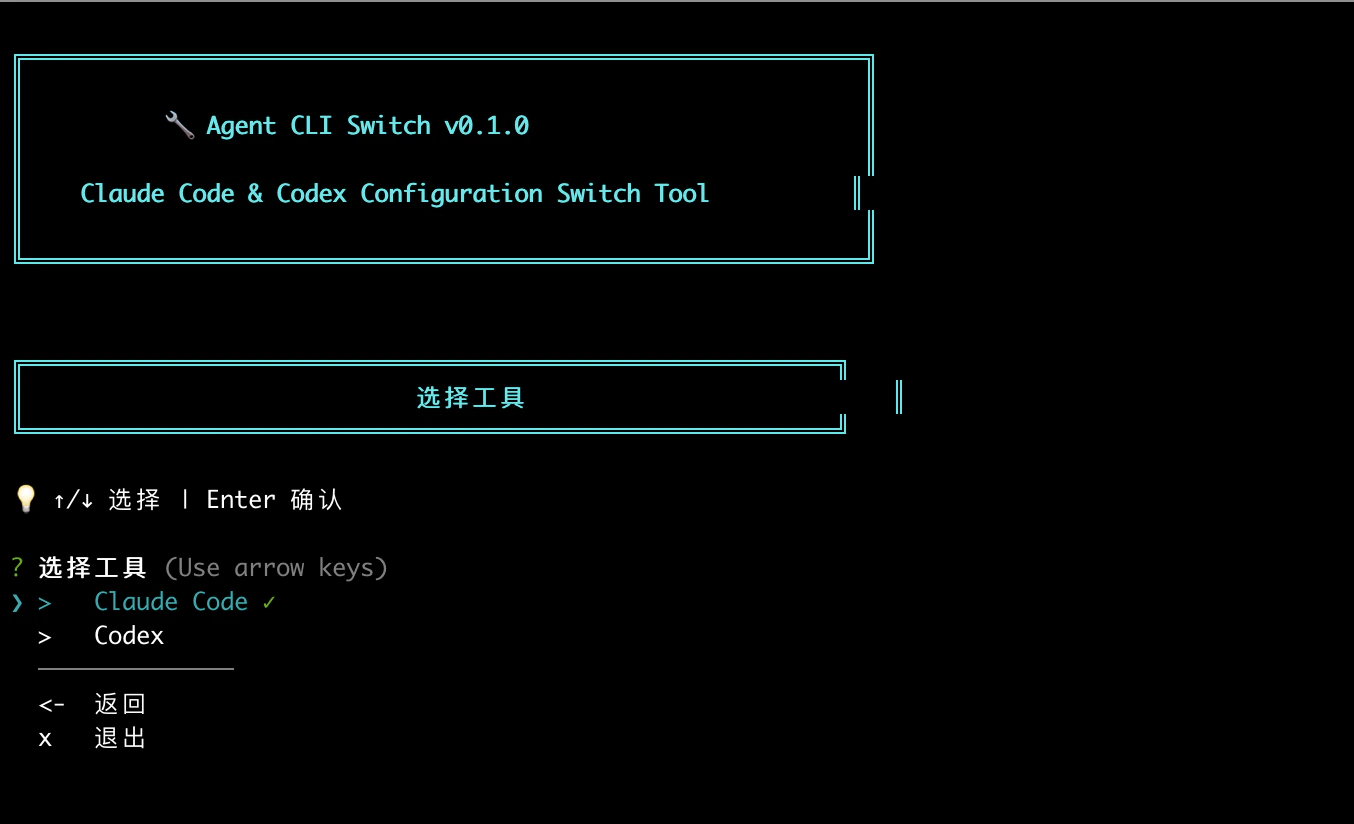
- In Select tool, choose Claude Code.
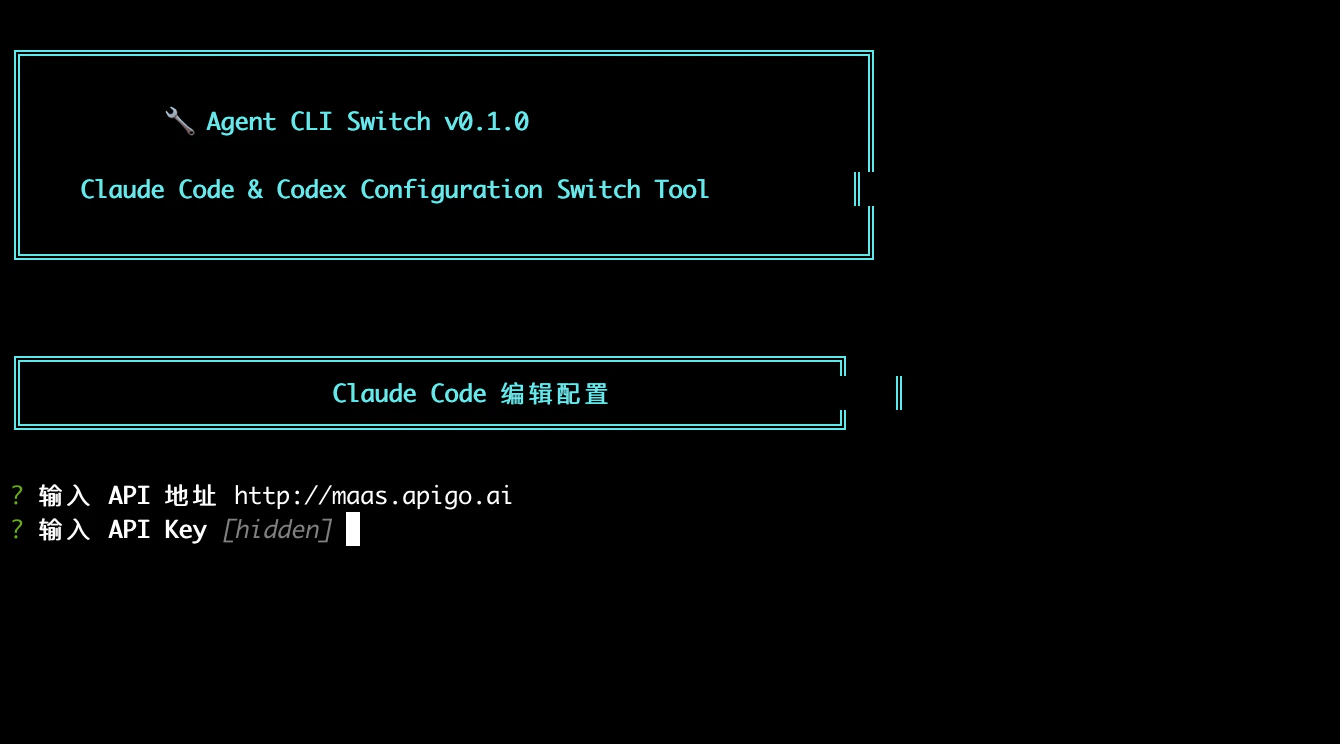
- In Claude Code edit config, enter:
API URL:https://maas.apigo.aiAPI Key: your ApiGo key
- After you see the config-saved prompt, choose to apply the configuration immediately.
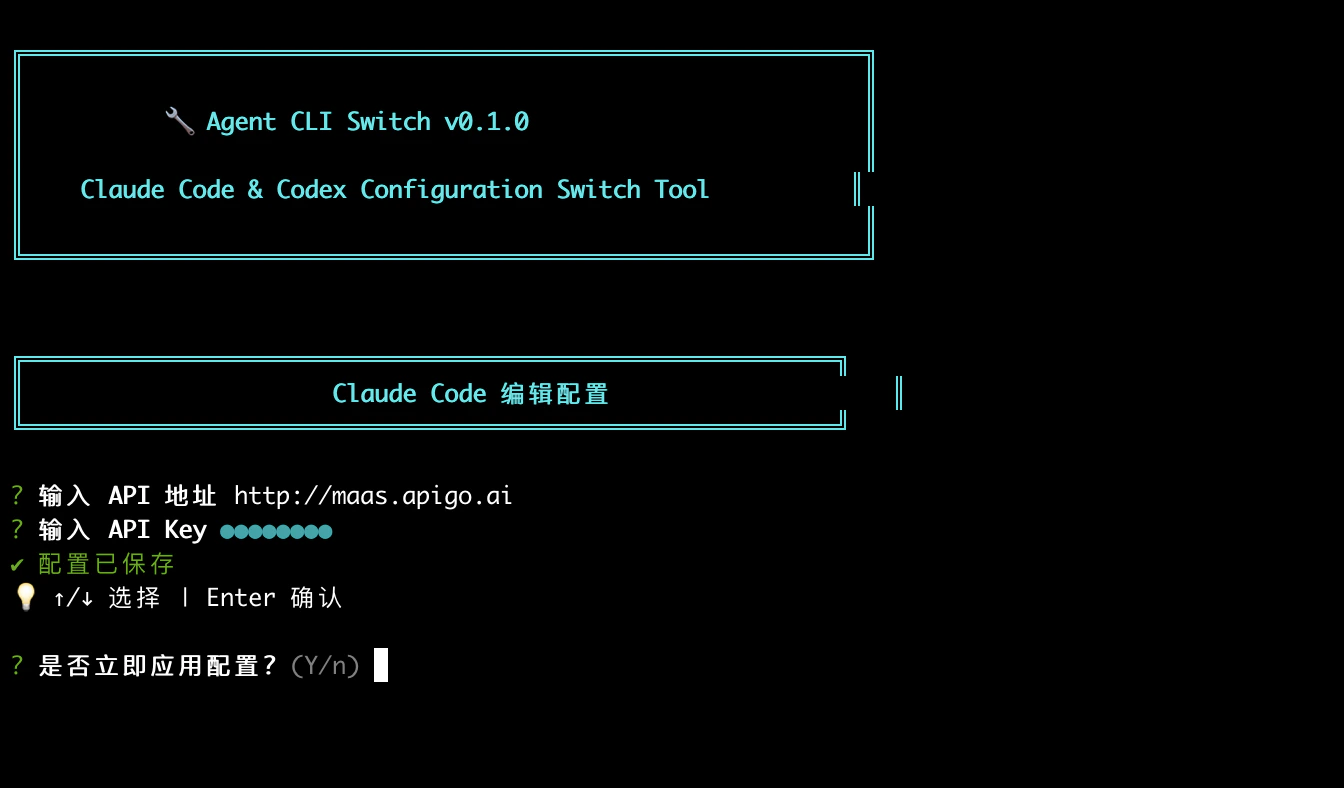
claude to use Claude through ApiGo.Launch Claude Code
After configuration, navigate to your project directory and run theclaude command in the terminal to launch Claude Code.