Documentation Index
Fetch the complete documentation index at: https://docs.apigo.ai/llms.txt
Use this file to discover all available pages before exploring further.
安装 Claude Code
macOS, Linux, WSL:curl -fsSL https://claude.ai/install.sh | bash
Windows PowerShell:irm https://claude.ai/install.ps1 | iex
Windows CMD:curl -fsSL https://claude.ai/install.cmd -o install.cmd && install.cmd && del install.cmd
macOS, Linux:brew install --cask claude-code
Windows:winget install Anthropic.ClaudeCode
如需查看更多安装方式和版本说明,可参考 Claude Code 官方文档。
配置平台 API
重要提示:
在配置前,请确保清除以下 Anthropic 相关的环境变量,以免旧配置覆盖平台设置:
ANTHROPIC_BASE_URL
ANTHROPIC_AUTH_TOKEN
选择接入方式
@apigo/vibe-coding
手动配置(当前方式)
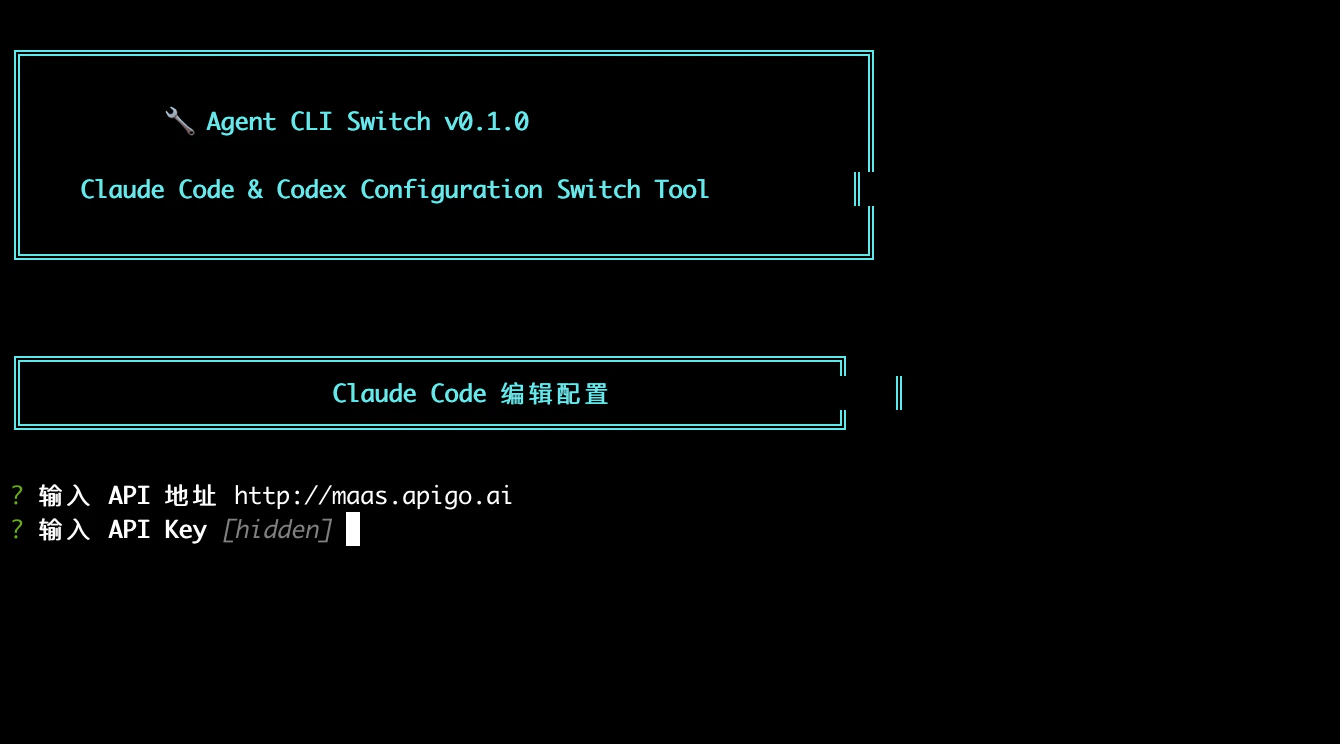
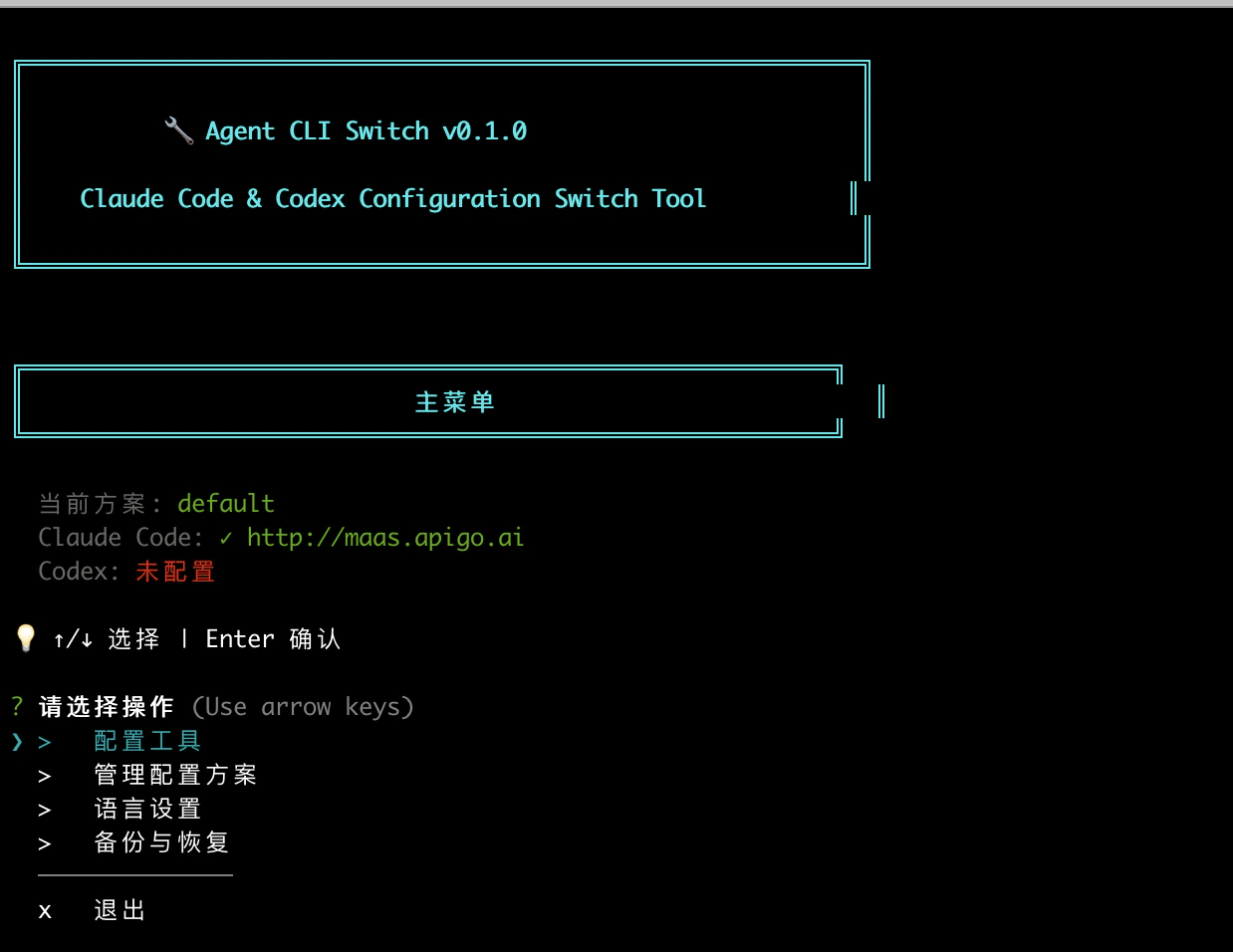
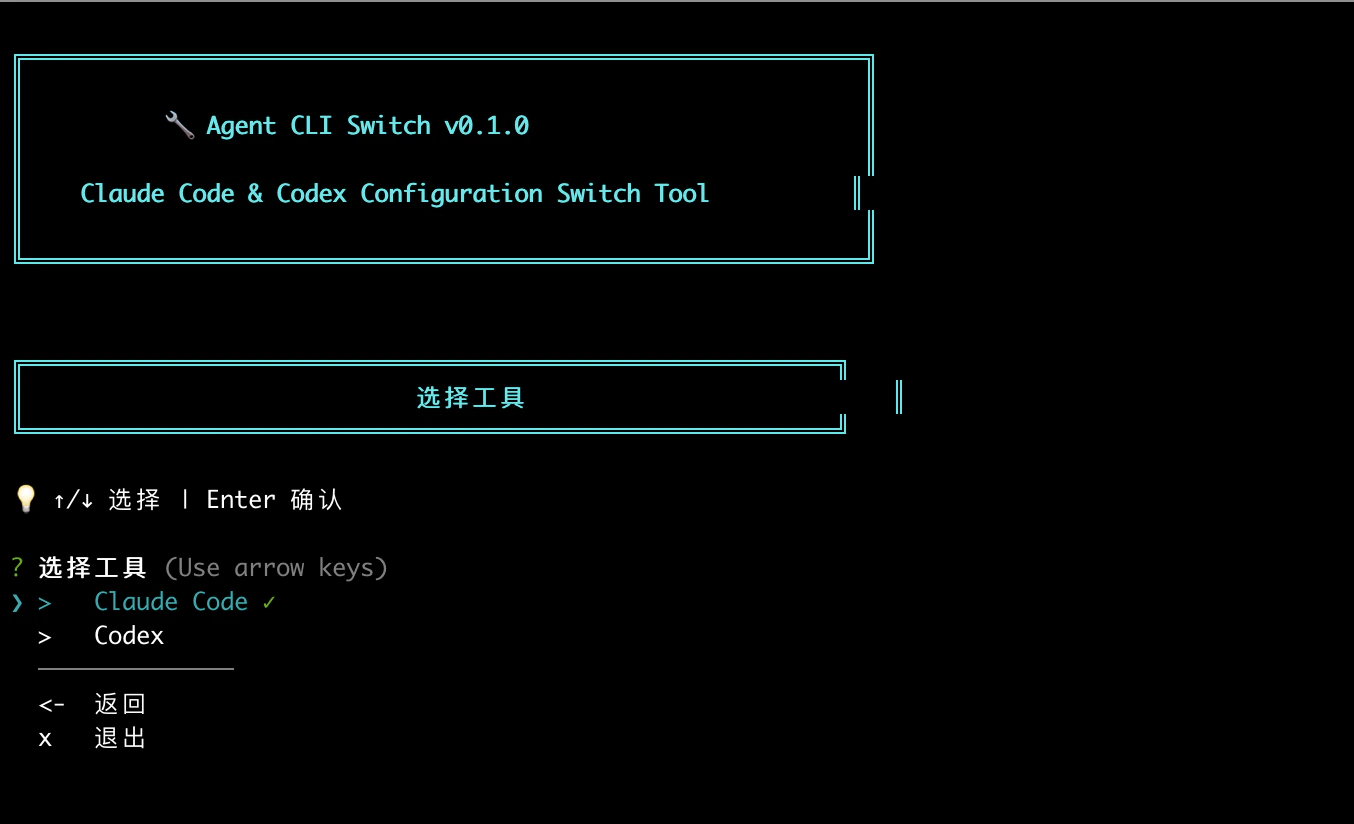
@apigo/vibe-coding 对应的是交互式终端工具 Agent CLI Switch。这一方式会直接帮你写入 Claude Code 配置。可按截图中的实际流程操作:
- 打开 Agent CLI Switch v0.1.0。
- 在 主菜单 中选择 配置工具。
- 进入 选择工具,选择 Claude Code。
- 进入 Claude Code 编辑配置 后,按提示输入:
API 地址:https://maas.apigo.ai
API Key:你的 ApiGo Key
- 看到“配置已保存”后,选择立即应用配置。
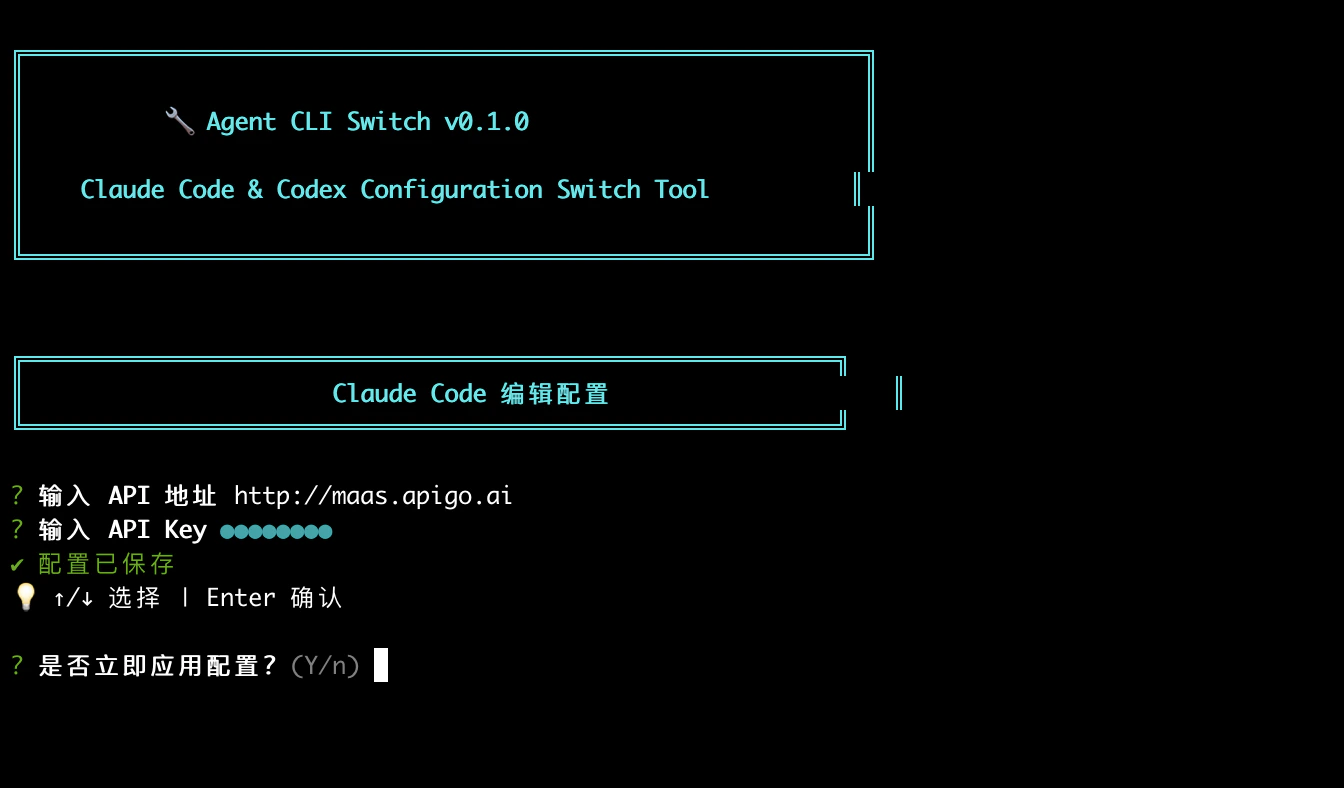
应用完成后,直接运行 claude 即可通过 ApiGo 中转使用 Claude。编辑或创建 Claude Code 的配置文件:
- MacOS & Linux:
~/.claude/settings.json
- Windows:
用户目录/.claude/settings.json
将以下占位符替换为您平台的实际信息:
YOUR_PLATFORM_API_KEY:平台提供的 API Key
{
"env": {
"ANTHROPIC_BASE_URL": "https://maas.apigo.ai",
"ANTHROPIC_AUTH_TOKEN": "YOUR_PLATFORM_API_KEY"
}
}
只要这两个变量配置正确,Claude Code 就会通过您的平台转发 Claude 请求。无需额外指定模型相关字段。然后编辑或新增 ~/.claude.json:{
"hasCompletedOnboarding": true
}
注意:环境变量 ANTHROPIC_AUTH_TOKEN 和 ANTHROPIC_BASE_URL 优先级高于配置文件。
启动 Claude Code
配置完成后,进入工作目录,在终端中运行 claude 命令以启动 Claude Code。
信任文件夹
启动后,选择 信任此文件夹(Trust This Folder),以允许 Claude Code 访问该文件夹中的文件,随后即可通过平台中转使用 Claude 模型。